Web Form
Teach this lesson online for free. Large presentations may take a little time to load.
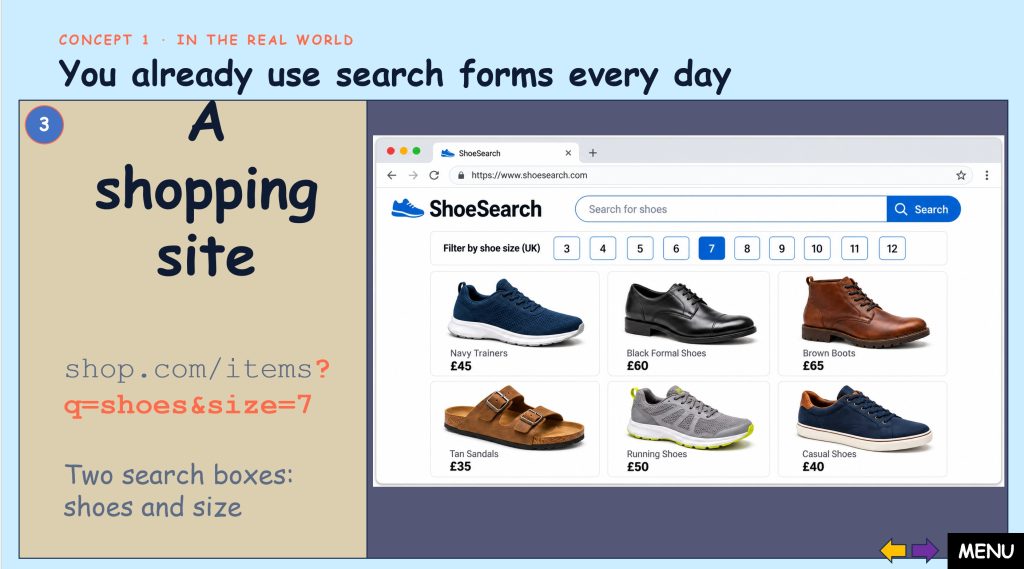
Chapter Objectives
- Explain what an HTML form is and why websites use forms to collect information from visitors.
- Identify the three building blocks of a form:
<form>,<label>and<input>. - Describe what the
actionandmethodattributes do, and choose betweenpostandget. - Link a label to its input box using
forandid, and explain why this helps all users. - Explain the difference between
idandname, and why every input needs aname. - Choose the right input
typefor a task, such astext,password,email,number,dateorsubmit. - Read and write the web address made by a
getform, including?,=,&and+. - Write a complete, working HTML form by hand, and spot and fix common mistakes.
Interactive Quizzes
Lesson Booklet
Exercise
Download this editable PowerPoint exercise and upload it to Google Classroom, Microsoft Teams, ClassDojo or Moodle.
Students can complete it on a computer, save their work and submit it online. You can also edit the PowerPoint to suit your class.
Exercise - Answers
Revision Lesson
This is a revision lesson designed to consolidate learning.
It can also be used as cover work or set as revision homework.

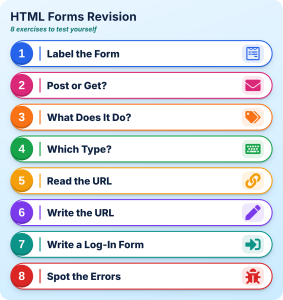
Teacher Google Form

Make your own copy of this quiz in Google Forms. You can edit it, share it with your students and receive their responses and scores directly in your Google account. Student responses from your copy are not sent to ROVN.
You must be signed in to a Google account to make a copy.
Student Google Form
Complete each question carefully, then click Submit when you have finished. You do not need to sign in or provide any login details to complete this quiz. After submitting, click View Score to see your result and check your answers. When you have finished reviewing your score, return to the lesson page and continue with the next activity.
How useful were these resources? Did you spot a mistake or have a suggestion?
Please rate this page below.
Tell us what you think
Please tell us which resource you are referring to (lesson, exercise, Google Form, interactive quiz or revision lesson) and, if possible, include the slide or question number.
Did you spot a mistake or have a suggestion?